Article summary: Dear friends, in the office world, computers are our "secret arsenal", which contains a bunch of confidential information such as customer information, financial data, and R&D plans. If these are leaked, the company will be in big trouble. Not only will it lose money, but the reputation will be lost.
Dear friends, in the office world, computers are our "secret arsenal", which contains a bunch of confidential information such as customer information, financial data, and R&D plans. If these were leaked, the company would be in big trouble. Not only would it lose money, but its reputation would also be damaged.
Therefore, encrypting office computers is like adding a super strong lock to the "arsenal". Today I will share with you some very practical computer encryption methods. Whether you are a technical novice or a master, you can find one that suits you. Follow me and try it out to give your computer a full range of security protection!

Method 1: Deploy third-party software (taking Insight MIT system as an example)
Deploying professional third-party software such as Insight Eye MIT system can provide comprehensive protection for the data security of office computers.
Transparent encryption: It has a powerful real-time transparent encryption function. Key data such as office documents, design drawings, code files, etc. can be encrypted in real time during employees' daily use. Employees open, edit, and save files as usual. The files are automatically encrypted when saved or transmitted. Even if the data is illegally obtained, it will be difficult for the other party to decrypt and view it, effectively preventing data leakage.

Behavior audit: It can record employees’ operations such as access, modification, and deletion of files, and generate detailed data operation logs. Enterprises can discover potential security risks in time through these logs, which is like having a pair of "smart eyes" for data security.
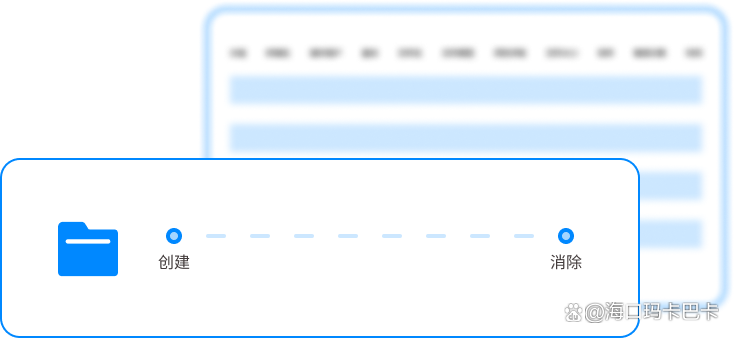
Permission management: Managers can flexibly set the access permissions of different employees or departments to encrypted documents, including reading, editing, printing, saving as, etc. For example, a regular employee may only be allowed to view and edit a specific document, but printing and saving as ; Department heads have higher authority and can perform more operations on relevant documents within the department. Through this refined permission allocation, it is ensured that documents are only transferred and used within the authorized scope, preventing information leakage caused by unauthorized access.
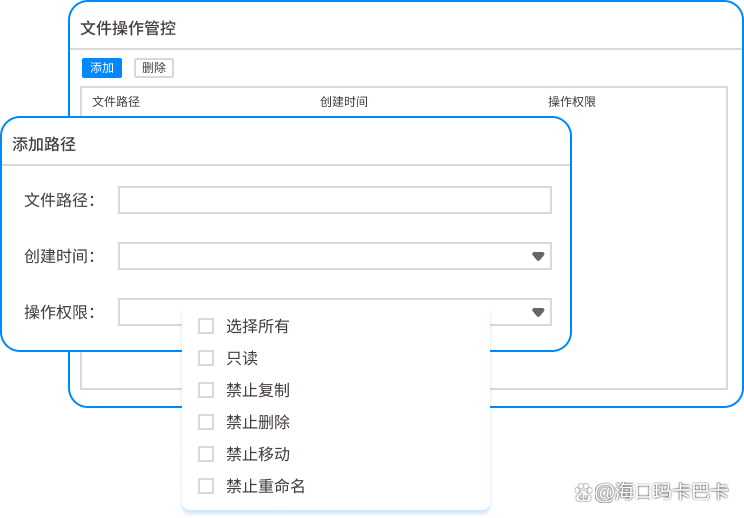
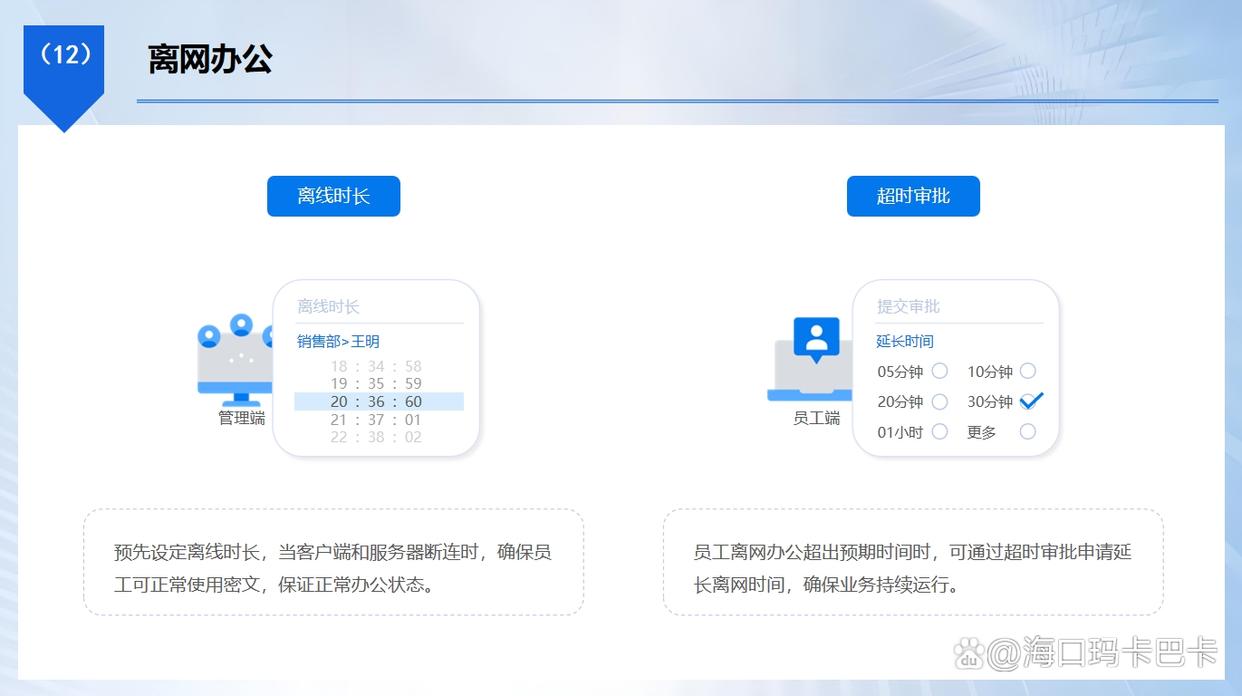
Offline control: When employees are on a business trip, they can keep encrypted files available for normal work through approval, without affecting daily development. They can also set the validity period, number of opens, prohibition of copying and other permissions for off-net files to prevent the leakage of encrypted files.
Method 2: Use File Encryption Wizard software
It is an encryption software with simple operation and practical functions. It supports encryption of a single file or an entire folder. There are various encryption methods, including fast encryption, strong encryption, etc. to choose from. We only need to open the software, select the file or folder to be encrypted, set the encryption password, click the encryption button, and the file or folder will be encrypted.
The encrypted file or folder will be displayed as encrypted in the resource manager, and only the correct password can be opened to view the contents. Moreover, it also has a file shredding function. For some sensitive files that need to be completely deleted and do not want to be recovered, you can use this function to shred them to further ensure data security.

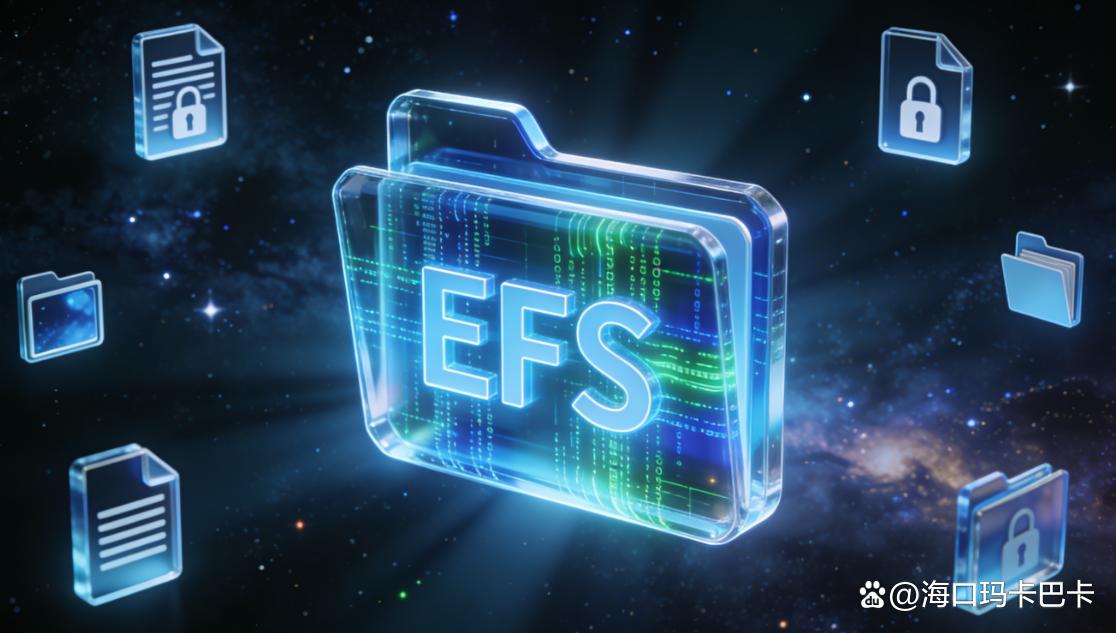
Method 3: Use Encrypted File System (EFS)
Advanced versions of systems such as Windows Professional Edition and Enterprise Edition come with the Encrypted File System (EFS) function. We can use it to encrypt files and folders. Right-click the file or folder you want to encrypt, select "Properties", switch to the "General" tab in the pop-up properties window, and click the "Advanced" button.
In the Advanced Properties window, check the "Encrypt content to protect data" option and click "OK." A window to confirm the property changes will then pop up, and we can choose to apply encryption to the current folder, subfolders and files, or only to the current folder.
After the settings are completed, the files or folders will be encrypted. Only by logging in to the computer with the user account used for encryption can the encrypted content be accessed normally, effectively preventing other users from viewing it.
Method 4: Use cloud disk encryption and synchronization tools
There are now many cloud disk encryption and synchronization tools that can encrypt and protect data during the process of synchronizing it to the cloud. Taking a well-known cloud disk encryption and synchronization tool as an example, after we install and log in, we set up the office folders that need to be synchronized. In the synchronization settings, you can turn on the encryption function, select the encryption algorithm and set the encryption password.
Later, when we add office files to the synchronization folder, the tool will automatically encrypt the files and then synchronize the encrypted files to the cloud server. The files stored in the cloud are also encrypted. Even if the cloud disk server is attacked, the attacker will obtain garbled files that cannot be decrypted.
When we need to access these files on other devices, use the same tool and password to log in, and the tool will automatically decrypt the files for us to view and edit, which is convenient and safe.
Method 5: Set BIOS startup password and hard disk password
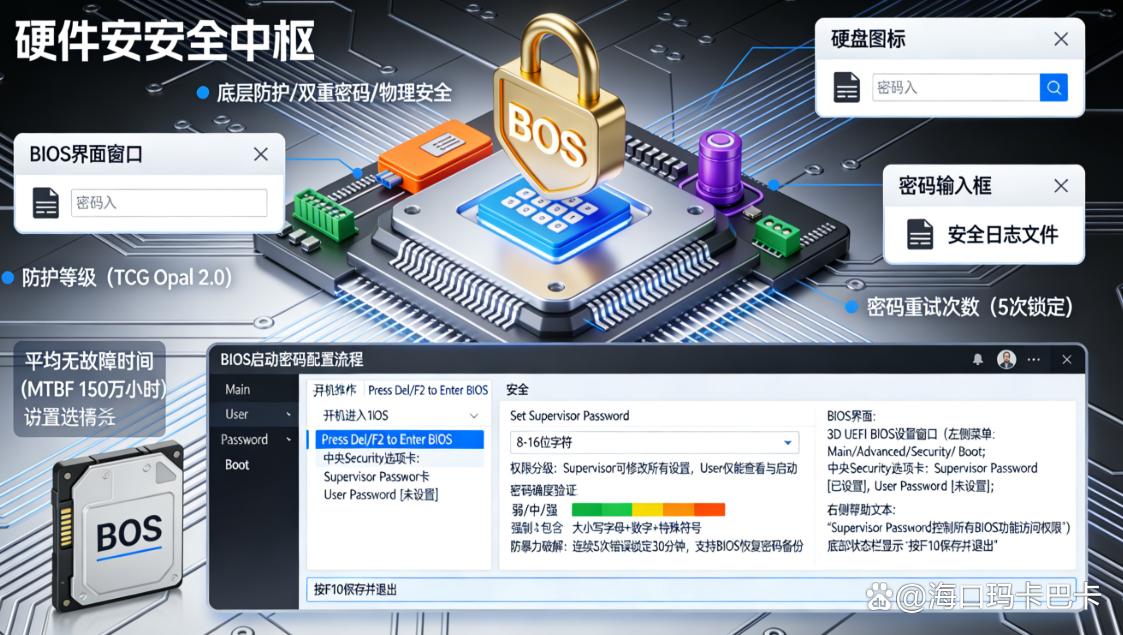
The BIOS startup password is a low-level hardware encryption method. When the computer starts, you need to enter the correct BIOS password to enter the system settings interface and then start the operating system. Without a password, you cannot enter the system and cannot use the computer, which can effectively prevent others from using the computer to access data without authorization.
At the same time, we can also set the hard disk password in the BIOS. After setting the hard disk password, every time the computer starts, in addition to entering the BIOS password, you also need to enter the hard disk password to access the data in the hard disk.
This double encryption provides a more reliable guarantee for the data security of office computers. Even if the computer is lost, the data in the hard disk will not be easily accessible to others. However, remember these passwords, as it will be more troublesome to deal with them if you forget them.
Method 6: Use a command-line disk encryption tool (such as VeraCrypt)
It is an open source disk encryption tool that supports operation in a command line environment. It is a good choice for users with a certain technical foundation. We can create an encrypted container through the command line, which is equivalent to creating a virtual encrypted disk partition.
Use specific commands to specify the container's size, encryption algorithm (such as AES, Serpent, etc.) and password. After creating the encrypted container, mount it to the system and it will appear in the resource manager like an ordinary disk partition.
We store the files that need to be encrypted in this encrypted container. When we want to access these files later, we need to uninstall and remount the container, and enter the correct password to view and edit the file contents. This method has high encryption strength and flexibility, and can meet the needs of users with high data security requirements.

The above are the 6 methods I have shared with you to encrypt office computers. Each method has its unique advantages and applicable scenarios. You can choose the appropriate method to protect the data security in your office computer based on your office needs, technical level, and security requirements. Act quickly and add a solid "security shield" to your office computer!


 Insight Eye MIT System


 Hebei Public Network Security No. 13019902001038