Article summary: Dear friends, are you worried when you think about so much important information stored in your computer? If your work documents, personal photos, study materials...are peeked or taken away by someone with ulterior motives, you will be in big trouble! Don't panic, don't panic, I'll come today
Dear friends, are you worried when you think about so much important information stored in your computer? If your work documents, personal photos, study materials...are peeked or taken away by someone with ulterior motives, you will be in big trouble! Don’t panic, don’t panic, today I will share with you 6 super practical computer encryption methods.
Whether you are a computer novice or a novice who is not familiar with encryption, you can easily learn it. These methods are simple and effective, just like adding a solid "security lock" to your computer, keeping your data safe and worry-free. Hurry up and learn with me!

Method 1: The system comes with disk encryption - simple and basic
The Windows system comes with a disk encryption function, which is like putting an invisible "protective suit" on our disks.
Taking Windows 10 as an example, open "This PC", right-click the disk to be encrypted, and select "Enable BitLocker". Then follow the prompts to set a password, and you can also choose to save the recovery key to a file or print it out in case you forget the password.
After the setting is completed, you need to enter a password every time you access this disk, which can effectively prevent others from viewing the contents of the disk at will. This method is simple to operate and suitable for novices who are not familiar with computers.

Method 2: Deploy the Insight MIT system—enterprise-level encryption protection
If it is an enterprise environment and there are a large number of computers that need encryption management, then deploying this system is perfect. It is not just a simple encryption tool, but a comprehensive data security protection solution.
Transparent encryption
It adopts high-strength encryption algorithms such as AES256 and RSA, and also supports national encryption standards and adapts to more than 200 commonly used office and design file formats such as Word, Excel, CAD, and PS. Files are automatically encrypted in the background when they are created and saved. Employees do not need to perform additional operations to open or edit, and do not change their office habits at all. ; However, if the file is out of the enterprise's authorized environment, if it is copied to an external computer or sent privately, it will appear garbled or cannot be opened.

Real-time encryption monitoring and auditing
It can monitor file operation behaviors on the computer in real time, including file creation, modification, deletion, copying, etc. Once a violation of the encryption policy is discovered, such as an employee trying to send an encrypted file out, the system will immediately issue an alert and record detailed operational information to facilitate auditing and traceability by the enterprise.

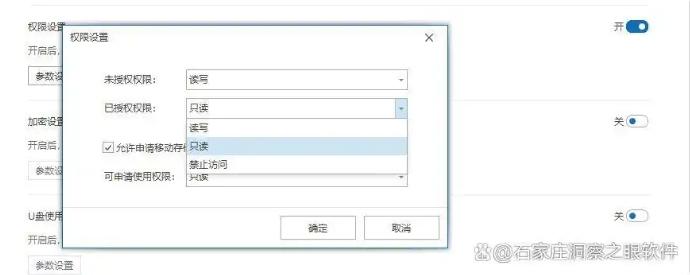
Permission assignment
Permissions can be subdivided by department, position or even role. For example, setting read-only permissions for quotations for the sales department, while core financial data is only open to editing permissions for the financial department.; You can also set various subdivided operation permissions such as "can see but not change" and "can change but not take screenshots". Even corporate management can restrict them from downloading core R&D code.
Method 3: EFS encryption – system-level file protection
EFS (Encrypting File System) is a file encryption technology that comes with the Windows system. It is like equipping files with an exclusive "bodyguard".
Using EFS encryption is very simple. In Windows Explorer, find the file or folder you want to encrypt, right-click and select "Properties", click the "Advanced" button in the "General" tab, check "Encrypt content to protect data", and then click "OK".
The system will prompt you to choose whether to encrypt the current folder, the folder and its subfolders and files, or only the folder. Select according to your needs and click "OK", and then follow the prompts to complete the subsequent operations.
The encrypted file will appear green in the system and can only be opened normally if you log in with your own account. Others cannot view the file even if they get it. The security is extremely high.
Method 4: 7 - Zip encryption - compression and encryption
It is not just an ordinary compression software, it also has powerful encryption functions. We first install the software, then select the files or folders to be encrypted, right-click and select "7 - Zip" → "Add to compressed package"”
. In the pop-up window, find the "Encryption" option, enter the password you want to set, and select the encryption algorithm. High-strength algorithms like AES-256 are good.
After setting up, click "OK" and an encrypted compressed package will be generated. To open this compressed package and view the file later, you must enter the correct password, thus adding double protection to the file.
Method Five: AxCrypt Encryption—Lightweight Encryption Artifact
It is a lightweight file encryption software. It is like a considerate little guard that can encrypt files quickly and conveniently.
After installing the software, open it and drag the files to be encrypted directly into the software interface. The software will automatically pop up the encryption window, set the encryption password, and select the encryption strength. After the encryption is completed, the original file will become an encrypted file, and a small lock icon will appear next to the file name. To open this file, double-click it, enter the password, and view and edit it normally.
And it also supports batch encryption, which can encrypt multiple files at one time, greatly improving encryption efficiency.

Method Six: Hardware Encryption Device—Physical Level Security
In addition to software encryption, we can also use hardware encryption devices to protect computer data, which is like equipping the computer with a solid "safe". Common hardware encryption devices include encrypted USB drives, encrypted hard drives, etc.
Take an encrypted USB flash drive as an example. It has a built-in encryption chip and needs to set a password and encryption mode when using it for the first time. After the setting is completed, the data in the USB flash drive can only be accessed by entering the correct password.
And even if the USB flash drive is lost, others cannot easily decipher the encrypted data inside, so the security is very high. Hardware encryption devices are not affected by the computer operating system, are more stable and reliable to use, and are suitable for storing very important data.

Dear friends, have you learned all these 6 computer encryption methods? Hurry up and choose the appropriate method according to your needs, and add a layer of solid security protection to your computer! Let our data be safe and worry-free, and we can use the computer with peace of mind!


 Insight Eye MIT System


 Hebei Public Network Security No. 13019902001038