Article summary: We usually use computers, and there are a lot of important things stored in them, such as work documents, private photos, etc. It would be terrible if they were leaked! Therefore, encrypting your computer is like locking a treasure, it is essential. But when many people think about encryption, they feel that the operation is complicated.
We usually use computers, and there are a lot of important things stored in them, such as work documents, private photos, etc. It would be terrible if they were leaked! Therefore, encrypting your computer is like locking a treasure, it is essential. But when many people think of encryption, they think the operation is complicated, but this is not the case.
Today I will share with you some super simple and easy-to-learn computer encryption methods. Whether you are a computer novice or have a certain foundation, you can easily get started. With these methods, the data in our computer can be kept safe, and we no longer have to worry about information leakage!

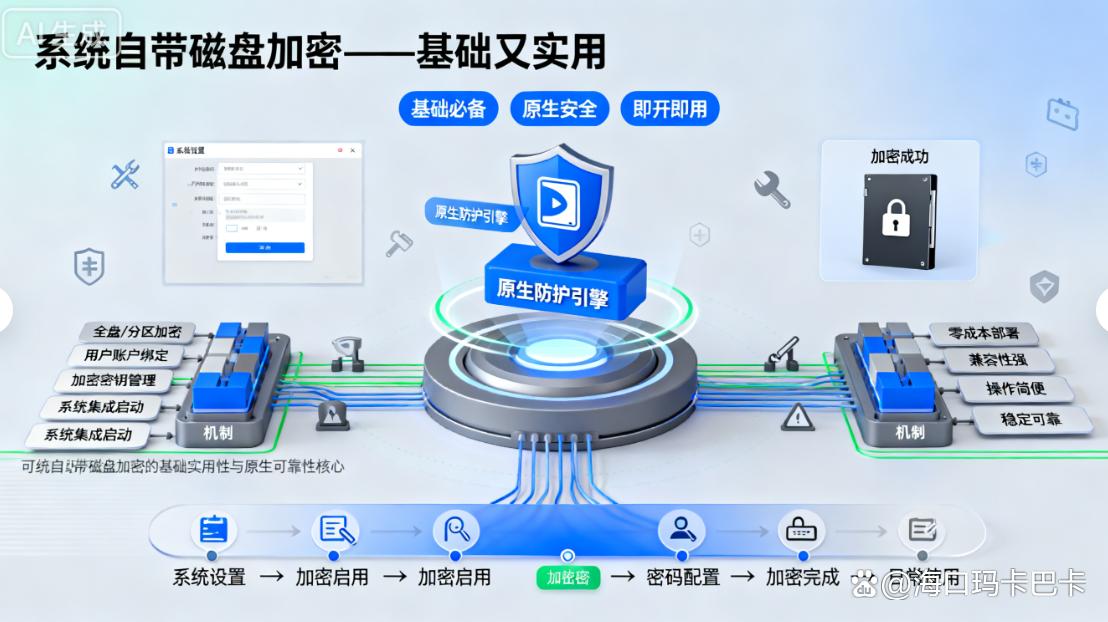
Method 1: The system comes with disk encryption, which is basic and practical
Most operating systems come with built-in disk encryption capabilities, and BitLocker drive encryption for Windows systems is a typical example. Open the "Control Panel", find "BitLocker Drive Encryption", select the disk partition to be encrypted, and click "Enable BitLocker".
A settings window will pop up, and you can choose to use a password or smart card for authentication. If you choose password verification, you need to set a password that is strong enough and easy to remember. The password can contain a combination of letters, numbers, and special characters to enhance security.
After setting the authentication method, BitLocker will prompt you to select an encryption mode. There are "new encryption mode" and "compatibility mode" to choose from. “"New encryption mode" is more secure and suitable for newer Windows system versions ; “"Compatibility Mode" has better compatibility and can be used on some older systems or devices. After selecting the encryption mode, click "Next" to start the encryption process.
During the encryption process, the system encrypts all data on the disk, which may take some time, depending on the size of the disk and the amount of data. After completion, you must enter a password every time you access the partition, which can effectively prevent others from viewing the content at will. Moreover, this is a built-in function of the system, so there is no need to install additional software, so it is very convenient.
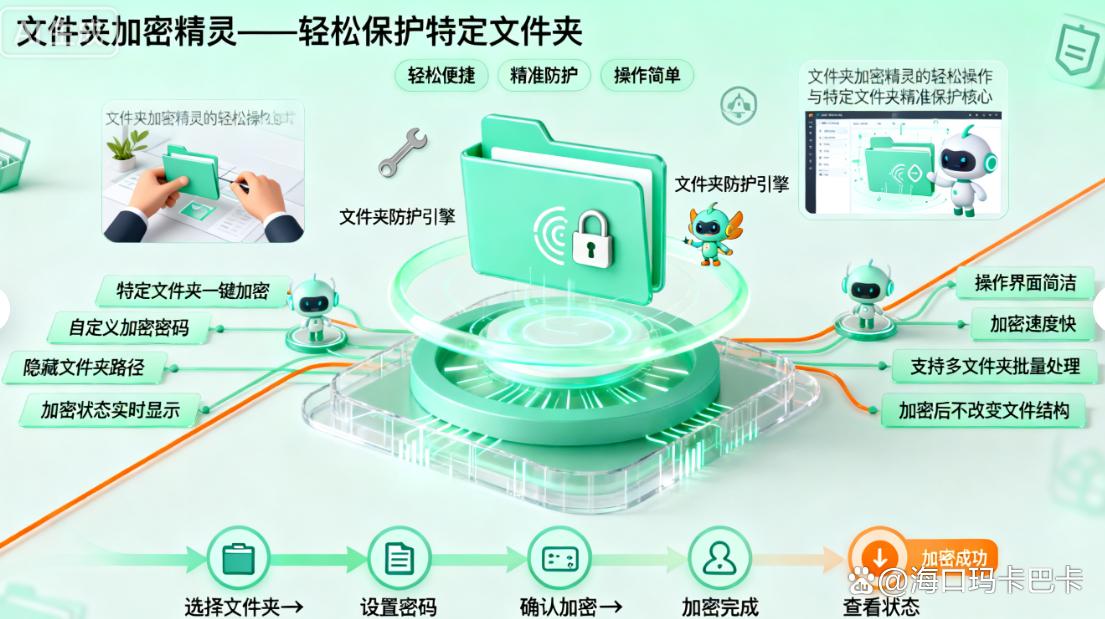
Method 2: Folder Encryption Wizard to easily protect specific folders
This is a simple and easy-to-use folder encryption software, suitable for users who do not want to encrypt the entire disk, but only want to protect specific folders. After installing the software, open it. Its interface is simple, intuitive and easy to operate.
Select the folder to be encrypted, click the "Encrypt" button, and the password setting window will pop up. You can set a master password and prompt questions and answers. The master password is used to open encrypted folders every day, and the prompt questions and answers help you retrieve the master password if you forget it.
After setting the encryption password, the software will use advanced encryption algorithms to encrypt all files and subfolders in the folder. The encrypted folder will become an encrypted file, which may look like an ordinary file icon, but can only be opened and viewed by entering the correct password through the software.
When you need to access an encrypted folder, open the software, enter the password, and the software will quickly decrypt the folder, allowing you to view and use the files in it normally. You can put important work documents, personal photos, etc. into encrypted folders to accurately protect data security.
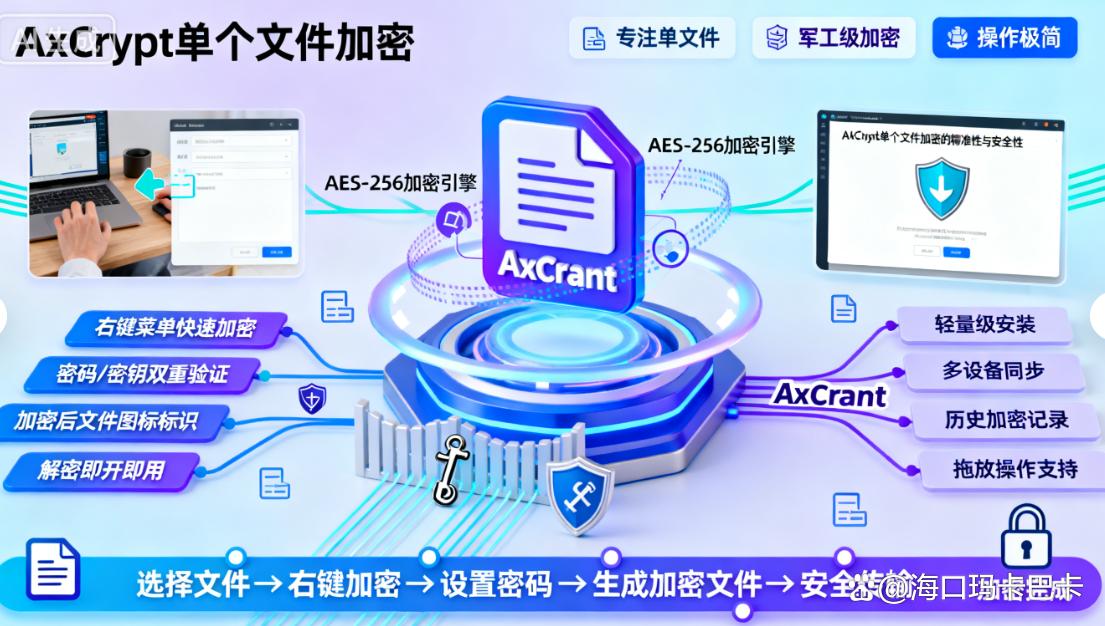
Method 3: Use AxCrypt to encrypt a single file
It is a software that focuses on individual file encryption and is simple and efficient to operate. After downloading and installing the software, its interface design is simple and its functions are clear at a glance.
Right-click the file to be encrypted, select "AxCrypt" -> "Encrypt", and enter the encryption password in the pop-up window. You can choose to use a passphrase or a key file for encryption. The passphrase is the password you set yourself, and the key file is a specific file. Only by possessing the key file and knowing the relevant operations can the file be decrypted, further enhancing security.
After entering the password, click "OK", AxCrypt will immediately encrypt the file and generate an encrypted file, and the file extension will become .axx. If others want to view this file, they must install the software and enter the correct password to decrypt and open it.
It supports a variety of file formats. Whether it is documents, pictures, videos or audio files, it can be easily encrypted. It can meet your needs for different types of file encryption and provide a reliable lock for individual files.
Method 4: Deploy Insight MIT system and enterprise-level encryption protection
For enterprises, computers store a large amount of important data such as business secrets and customer information. Once leaked, the losses will be immeasurable. This system is an excellent choice to deploy at this time. As a professional enterprise-level data security protection software, it can encrypt and protect computers in all aspects.
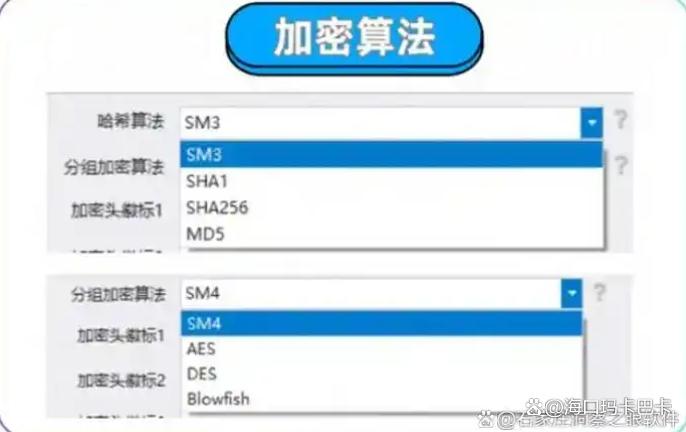
Encryption algorithm: It uses advanced encryption algorithms to encrypt files, folders, disks, etc. in the computer to ensure the security of data during storage and transmission. For file encryption, it supports batch encryption function. Enterprises can select multiple files or folders for encryption at one time, which greatly improves work efficiency.
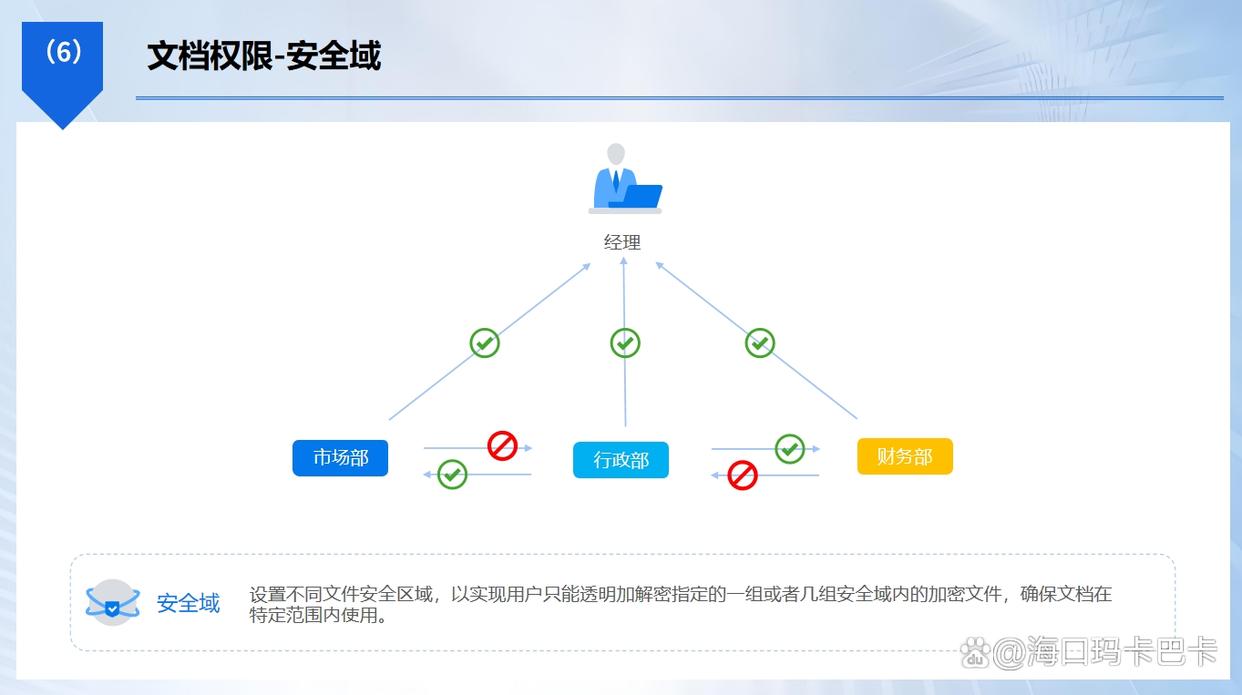
Fine permission management: Enterprises can accurately set the access permissions to computer data according to employees in different departments and positions. For example, you can set up employees in the sales department to only have access to customer information and sales contracts, but not financial data and R&D information. ; Employees in the R&D department can only access technical documents related to the project and cannot access market research reports. This granular permission setting effectively prevents internal data leakage.
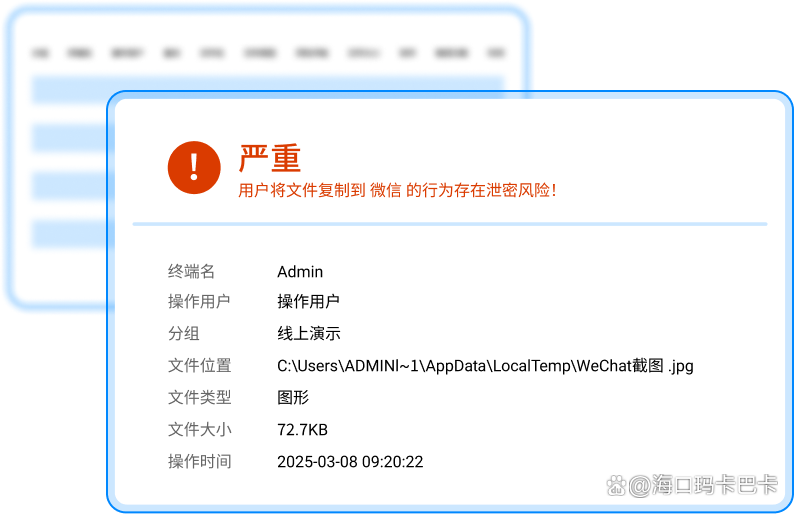
Audit trail: It can record all computer operations in detail, including file creation, modification, deletion, copying, etc., as well as employee login and logout time and other information. It can also perform classified statistics and analysis on these operating behaviors and generate detailed audit reports. Once abnormal operations are discovered, such as employees downloading a large number of sensitive files during non-working hours, companies can quickly trace the source and take timely measures to keep corporate data safe.
Method 5: Hardware-encrypted USB flash drive to ensure security from the source of storage
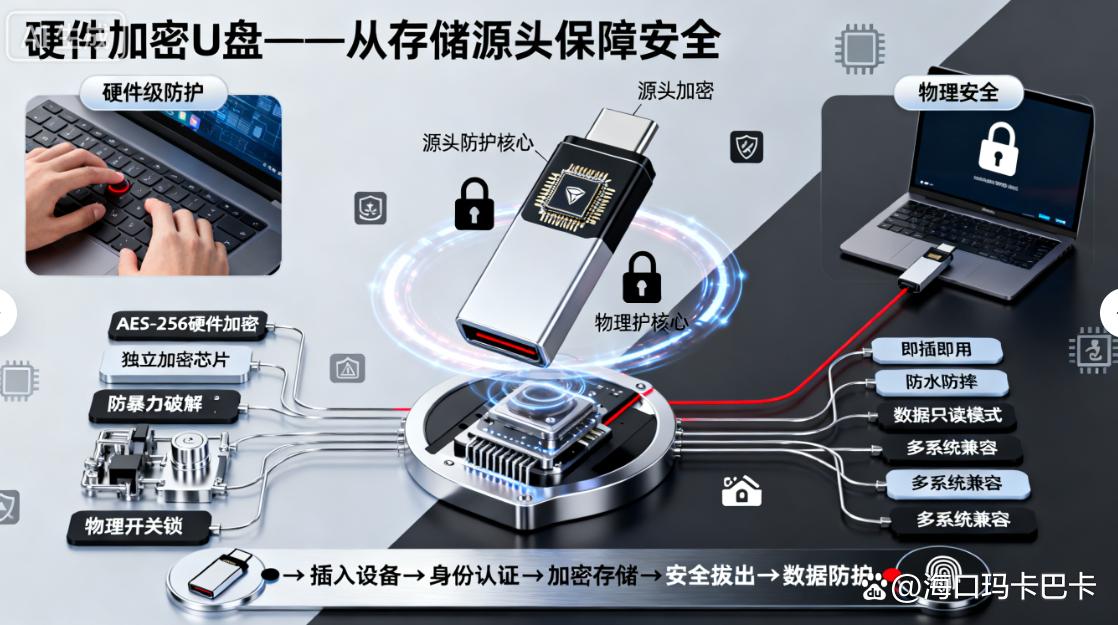
In addition to encrypting the computer itself, we can also start with the storage source - the USB flash drive and use hardware to encrypt the USB flash drive to protect data. The hardware encryption USB flash drive has a built-in encryption chip and uses hardware encryption technology, which is more secure and reliable than software encryption.
Kingston DataTraveler encrypted USB flash drive uses AES 256-bit hardware encryption technology, which is a very advanced and secure encryption standard. There is no need to install any software. After inserting it into the computer, enter the password through the physical buttons on the USB flash drive to unlock it. The password input interface has a simple design, the buttons feel good and are easy to operate.
If you enter the wrong password multiple times in a row, the USB flash drive will be automatically locked to prevent brute force cracking. And after locking, you need to go through a specific unlocking process before you can try to enter the password again, further enhancing security. Its encryption and decryption speed is very fast and will not affect your normal use.
Whether you are transferring large files or frequently reading and writing data, it can remain efficient and stable. Use hardware to encrypt the USB flash drive. Even if the USB flash drive is lost, others will not be able to access the data inside, ensuring the security of your data from the source of storage.
The above are several simple and easy-to-learn computer encryption methods. You can choose the encryption method that suits you according to your needs and actual situation, and add a solid protective cover to your computer data. Make our digital world safer and more secure!

 Insight Eye MIT System


 Hebei Public Network Security No. 13019902001038