Article summary: "Customer information is stored in the computer for fear of being leaked" "Personal privacy documents are worried about being read by mistake" - many people have had such concerns about file security, but they always feel that encryption is a complicated technical process and have not dared to try it. In fact, there is no need to worry at all! Computer file encryption
“"Customer information is stored in the computer for fear of being leaked" and "personal privacy documents are worried about being read by mistake" - many people have had such concerns about file security, but they always feel that encryption is a complicated technical process and have been hesitant to try it.
In fact, there is no need to worry at all! Encrypting computer files can be very simple. Whether it is a built-in function of the system or a lightweight tool, a few steps can build a strong security line.
The 5 methods compiled below cover the needs of different scenarios, from enterprise-level protection to personal file protection. Novices can easily get started by following them, and no longer have to worry about file security!
 editSearch pictures
1. Deploy the Insight MIT system: “Full-process encryption of enterprise-level files””
For enterprise or multi-device management scenarios, deploying this system can achieve the dual protection of "encryption + monitoring" of files, ensuring file security from the source, with simple operation and strong adaptability.
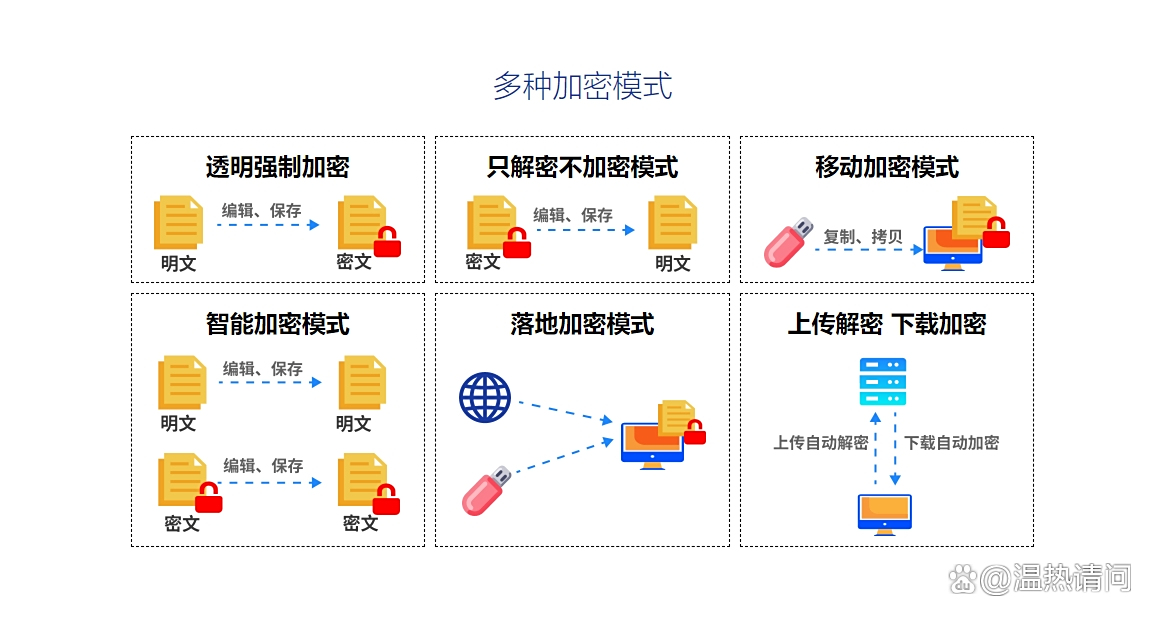
First, install the system client on the management terminal and the computer that needs to be encrypted. After the installation is completed, enter the system "File Security" module and turn on the "File Encryption" function - multiple encryption modes are supported:
Diverse encryption modes:
 editSearch pictures
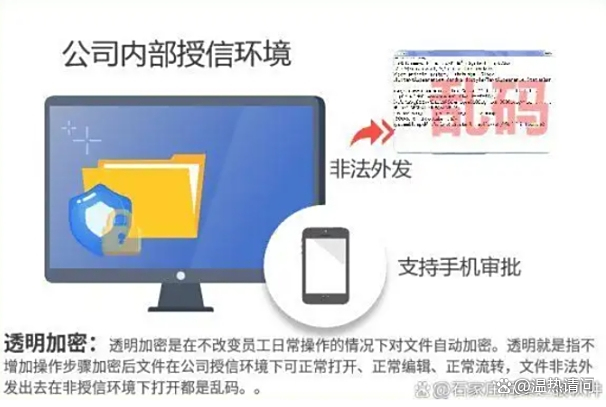
Supports transparent encryption, so employees can operate encrypted files normally within the company without hindrance. However, if copied to external devices or sent to external mailboxes, the files will become garbled.; It also supports semi-transparent encryption and can set rules for specific departments or file types to flexibly adapt to different confidentiality needs.
Transparent encryption: In transparent encryption mode, files are automatically encrypted and decrypted when they are created, modified, and saved, without any user awareness and without affecting normal office operations.
 editSearch pictures
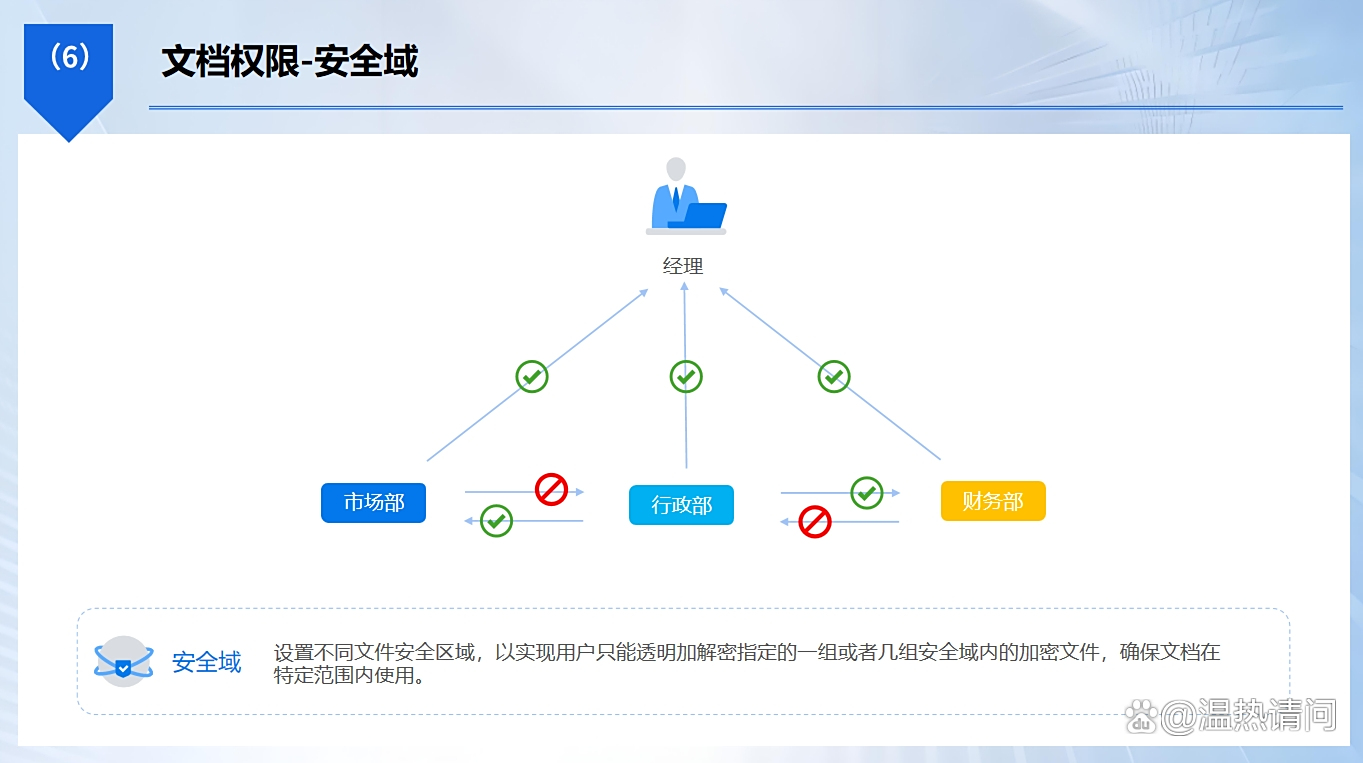
Permission control: You can set the access and operation permissions of files based on the identity, department, project and other factors of different employees or users, such as read-only, editable, prohibited copying, prohibited printing, etc. You can also manage permissions for operations such as copying and dragging to prevent unauthorized access.
 editSearch pictures
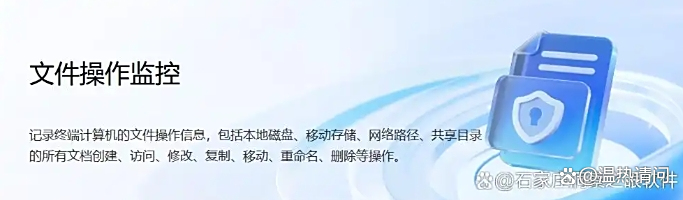
File operation records: Detailed records of all operations on encrypted files, including who opened, edited, copied, cut, deleted, and renamed which files at what time, and whether attempts were made to send files out via USB flash drives, emails, chat tools, etc. These logs support query, export, and auditing, providing strong evidence for subsequent accountability.
 editSearch pictures
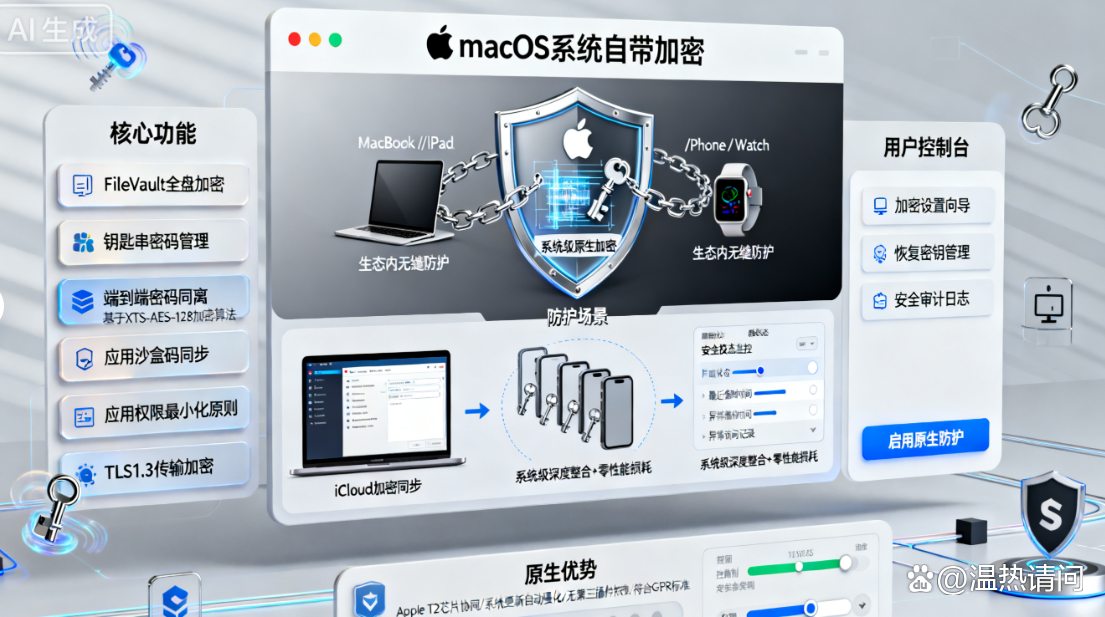
2. Use macOS system’s built-in encryption: Apple device’s “native protection””
If you use this system, no additional software is needed. File encryption can be achieved through "File Vault" and "Disk Utility". It adapts to the ecological environment of Apple computers, and the operation is smooth and highly secure.
Method 1: FileVault Full Disk Encryption
Click "Apple Menu" → "System Settings" → "Privacy and Security" in the upper left corner of the screen, find "File Vault" and click "Open". Follow the prompts to select "Unlock with iCloud account" or "Create a recovery key" (the recovery key must be kept properly). The system will automatically encrypt the entire disk. After the encryption is completed, you will need to enter a password every time you turn on or restart the computer to prevent others from accessing the files in the computer without authorization.
Method 2: Disk Utility creates an encrypted disk image
Open "Launchpad" → "Others" → "Disk Utility", click "File" → "New Image" → "Blank Image" in the menu bar, set the image name, size and storage location, select "256-bit AES encryption (more secure)" in the "Encryption" option, set the password and click "Create". The generated encrypted image file requires a password to be opened by double-clicking it. Sensitive files can be placed in it. The file is automatically encrypted after closing, which is suitable for protecting a small number of core files.
 editSearch pictures
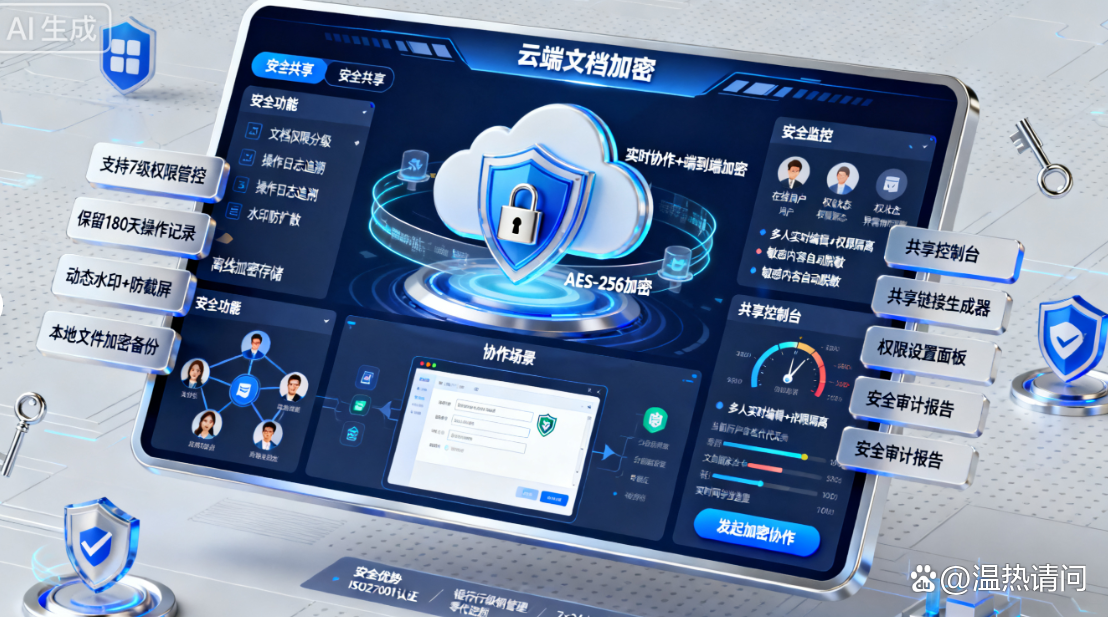
3. With the help of cloud document encryption: online collaboration "safe sharing"”
If you often collaborate through the cloud (such as Tencent Docs, Feishu Docs), you can use the cloud's built-in encryption function to achieve file storage and encrypted synchronization, taking into account convenience and security, and is suitable for remote team collaboration scenarios.
Take Tencent documents as an example: Create or open a document that needs to be encrypted, click the "Share" button in the upper right corner, select "Only designated people can view/edit" in the sharing settings, enter the mobile phone number or email address of the collaboration member, and turn off the "Allow forwarding" function; If you need a higher level of security, click "Document Settings" → "Permission Management", turn on "Watermark Protection" (add a personal watermark to prevent leakage of screenshots), and set an "Access Validity Period" (for example, valid within 7 days), which will automatically expire after expiration.
The operation of Feishu documents is similar. In the "Share" window, set the "Permission Scope" to "Visible to Team Members Only" and turn on the "Operation Log" function to record who has viewed and modified the document in real time. It also supports "Document Lock". After locking, only administrators can modify it. It is suitable for encrypted sharing of important documents within the enterprise.
 editSearch pictures
4. Use encryption software AxCrypt: single file "quick protection"”
It is a lightweight professional encryption software that focuses on fast encryption of individual files. It is simple to operate and has strong compatibility. It supports Windows and macOS systems and is suitable for individuals or small businesses to protect scattered sensitive files.
After installing the software and registering an account, right-click on the file that needs to be encrypted (such as Word document, Excel table), select "AxCrypt Encryption" in the menu, enter the password (supports setting password prompt), and click "OK" to complete the encryption. The encrypted file icon will display a special logo. You need to enter a password when double-clicking to open it. You can also right-click and select "AxCrypt Decryption" to temporarily unlock it.
In addition, it supports the "encrypted file sharing" function. Right-click the encrypted file and select "Share" to generate an encrypted file. link and Set the validity period, and the recipient can download and decrypt it by clicking on the link and entering the password. There is no need to install software. It is suitable for transmitting sensitive files across devices and platforms.
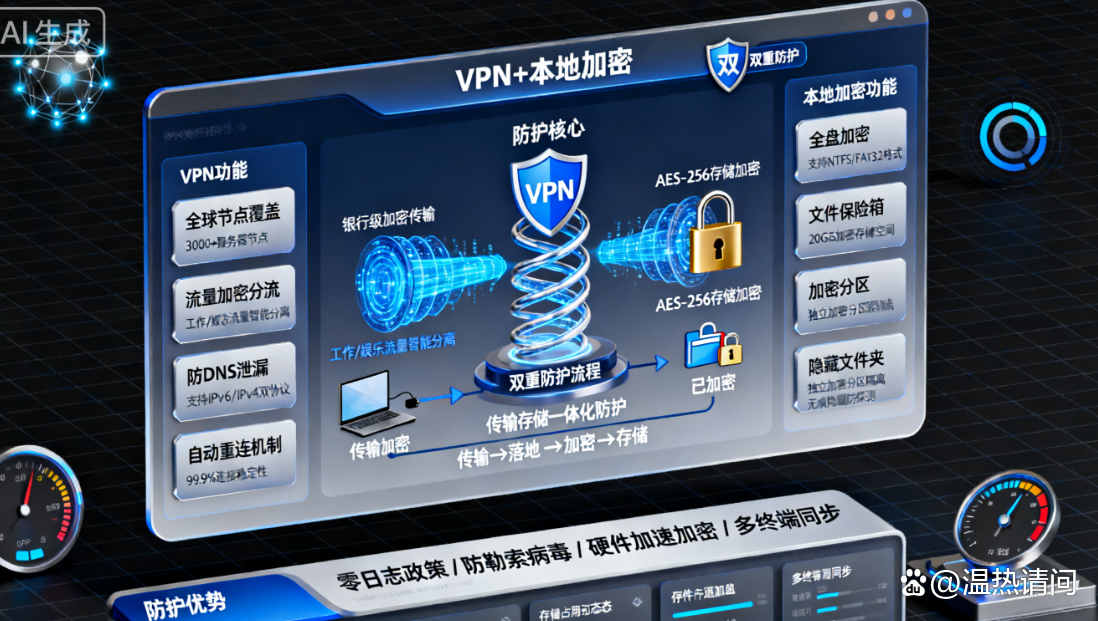
5. Use virtual private network (VPN) + local encryption: "double protection" for transmission and storage”
If you need to transfer files on a public network (such as coffee shop WiFi), you can combine VPN and local encryption to achieve the double protection of "transmission process encryption + local storage encryption" to prevent files from being stolen during transmission, which is suitable for mobile office scenarios.
First, install and connect a reliable VPN (such as ExpressVPN, NordVPN) on your computer to establish an encrypted network channel; Then, use the "compression software encryption" or "office software encryption" mentioned above to locally encrypt the file, and then send it via email or instant messaging tools.
For example: use 7-Zip to compress and encrypt the file, connect to VPN, and send it to colleagues through corporate mailboxes. The file is protected by VPN encryption during transmission, and is compressed and encrypted for local storage and storage at the recipient. Double protection is safer and is suitable for people who often work in external network environments.
6. Use Folder Lock: Folder "Batch Encryption"”
This is a software that focuses on folder encryption. It supports batch encryption of multiple folders and can also hide folders to prevent others from discovering file locations. It is suitable for protecting a large number of sensitive folders in the computer. It is simple to operate and has practical functions.
After installing the software, click "Lock File" on the main interface, select the folder that needs to be encrypted, click "OK", set the encryption password and confirm. The folder will be encrypted and hidden immediately (cannot be found directly in "This PC"). When access is required, open the software, enter the password, and click "Unlock" to temporarily display the folder. After closing the software, the folder will automatically be re-encrypted and hidden.
In addition, it supports the "encrypted backup" function to back up encrypted folders to a USB flash drive or the cloud. The backup files are also encrypted to avoid leakage after local files are lost. It is suitable for individual users to protect private photos, important documents and other folders.


 Insight Eye MIT System


 Hebei Public Network Security No. 13019902001038