Article summary: We are busy on the computer every day and save a lot of important information, such as work documents, personal photos, etc. If this is accidentally leaked, it will be terrible! Therefore, encrypting your computer is like locking your front door. It is very necessary. No
We are busy on the computer every day and save a lot of important information, such as work documents, personal photos, etc. If this is accidentally leaked, it will be terrible! Therefore, encrypting your computer is like locking your front door. It is very necessary. However, when it comes to encryption, many people find it difficult. In fact, it is not the case at all.
Today I will share with you five super easy computer encryption methods. Whether you are a computer novice or have some basic knowledge, you can learn it in minutes and easily add a solid security shield to your computer to keep your data safe and stable!

Method 1: Deploy the Insight Eye MIT system for all-round protection
If you are an enterprise user, or your computer contains particularly important and sensitive data, then deploying this system is definitely a great choice. It is not just a simple encryption software, but a complete computer security management solution.
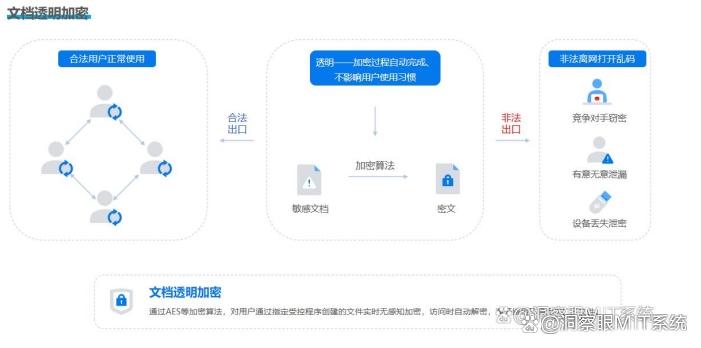
File encryption: It uses transparent encryption technology. Employees have no feeling when using files normally internally, just as if they are not encrypted. However, once the files leave the corporate credit environment, such as when sent via email or USB flash drive, they will automatically become garbled, effectively preventing data leakage.
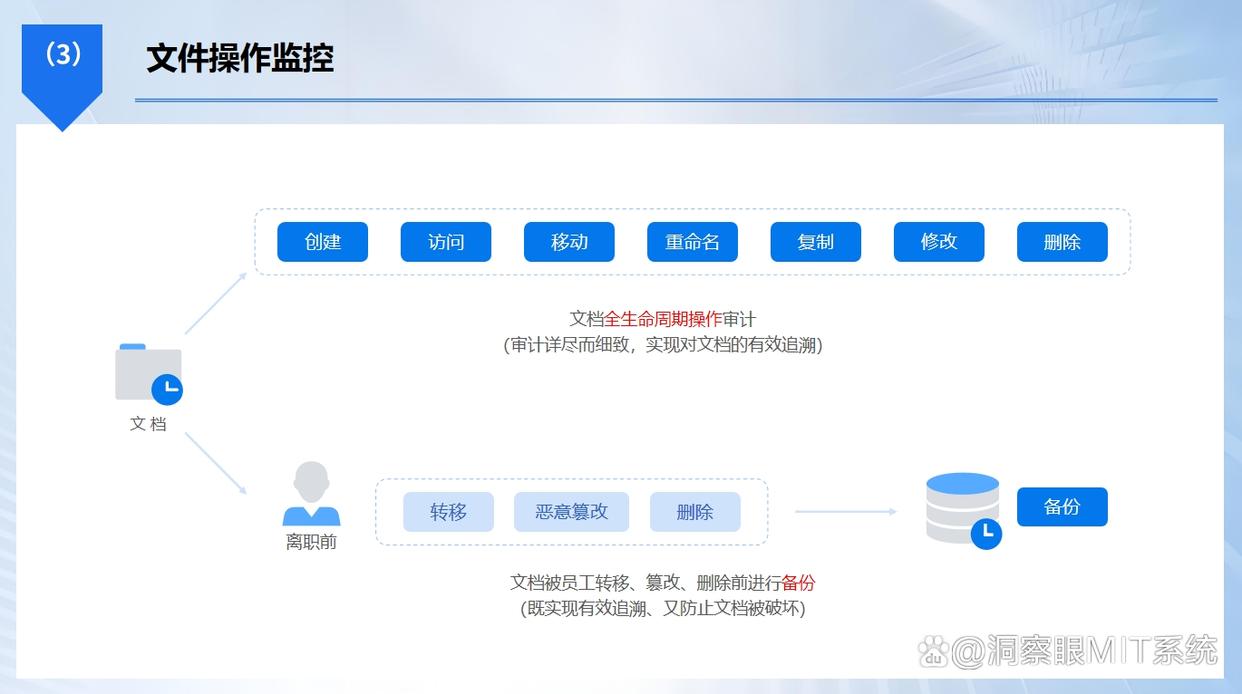
File operation behavior: records in detail the entire life cycle of files from creation to deletion, covering all behaviors such as modification, copying, moving, encryption, decryption, printing, etc., while retaining key information such as operator account, IP address, operation time and path, so that in the event of file anomalies, the person responsible can be quickly located.
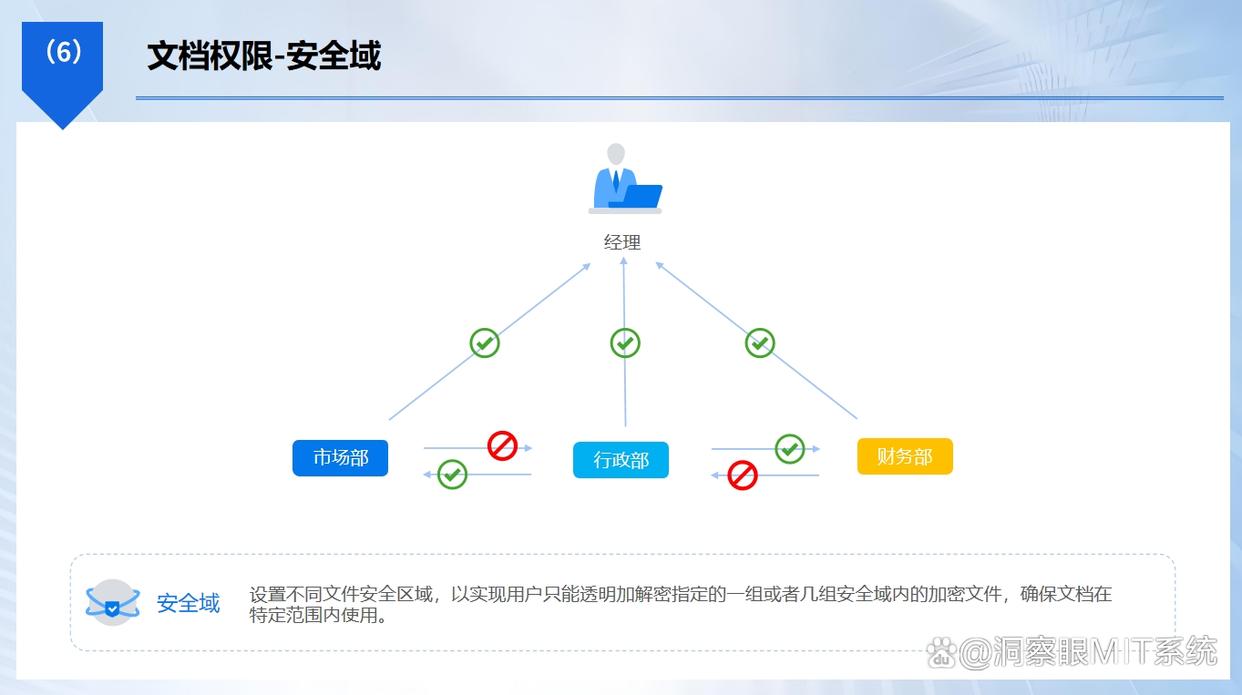
Permission management: Managers can flexibly set the access permissions of different employees or departments to encrypted documents, including reading, editing, printing, saving as, etc. For example, a regular employee may only be allowed to view and edit a specific document, but printing and saving as ; Department heads have higher authority and can perform more operations on relevant documents within the department.
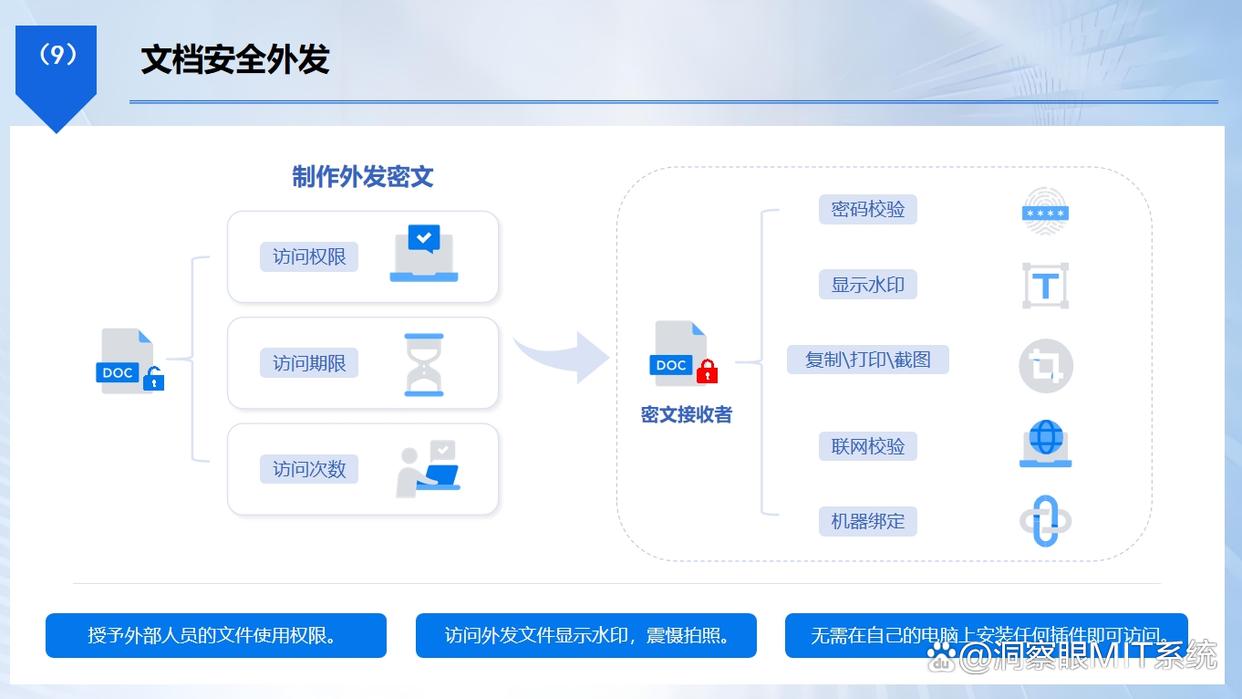
Outbound control: Enterprises can encrypt files that need to be shared with external partners, and set validity periods (such as 7 days, 15 days) and access limits. Partners must enter the authorization code provided by the enterprise to access the files, and the files cannot be downloaded, copied, or forwarded.
Method 2: The system comes with BitLocker (Windows) and FileVault (Mac), native security guarantee
Both Windows and Mac systems come with powerful disk encryption tools to build a basic line of defense for computer data security.
For Windows systems, if your version is Professional, Enterprise, or Education, you can use the BitLocker drive encryption feature.
Open the "Control Panel", enter "System and Security", click "BitLocker Drive Encryption", click "Enable BitLocker" on the drive that needs to be encrypted, and then follow the prompts to set a password or use smart card encryption.
After encryption is completed, every time you start the computer or access the encrypted drive, you must enter a password to unlock it. This is like putting a strong lock on the hard drive to prevent data leakage if the hard drive is lost or stolen.
The Mac system has the FileVault disk encryption function. Find "Security and Privacy" in "System Preferences", click the "FileVault" tab, and follow the prompts to turn on encryption. After turning it on, the entire disk data will be encrypted and can only be accessed by entering the correct password, which is extremely secure.
Method 3: Use Veracrypt open source encryption software to freely customize security
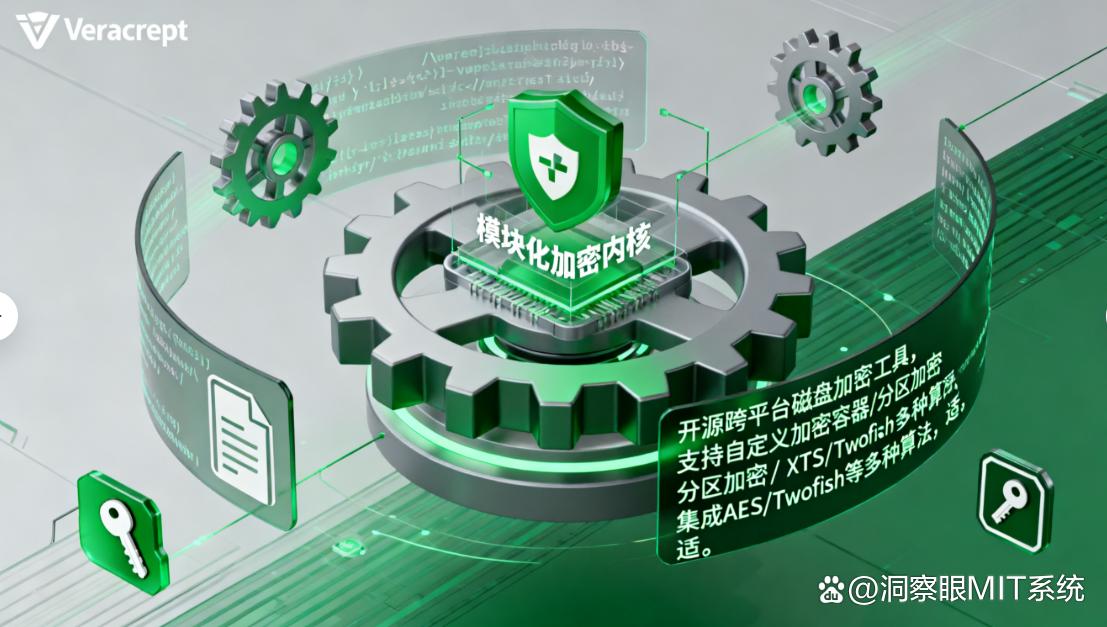
It is an open source disk encryption software that is powerful and highly customizable and can meet the diverse encryption needs of different users.
You can use software to create a virtual encrypted disk, which is like a new hidden, encrypted "safe" in your computer. After opening the software, select "Create Encrypted Volume", follow the wizard prompts to select the type of encrypted volume (such as standard encrypted volume, hidden encrypted volume, etc.), set the encryption algorithm (such as AES, Serpent, etc.), password, and then specify the size and storage location of the encrypted volume.
After creation, every time you want to access the contents of this encrypted volume, you only need to mount the encrypted volume in the software, enter the password, and it will appear on the computer like an ordinary disk. You can uninstall it after use. The data is safe and convenient.
Method 4: AxCrypt file encryption tool, a simple encryption expert
This is a simple and easy-to-use file encryption software, especially suitable for users who want to encrypt a single file or a small number of files.
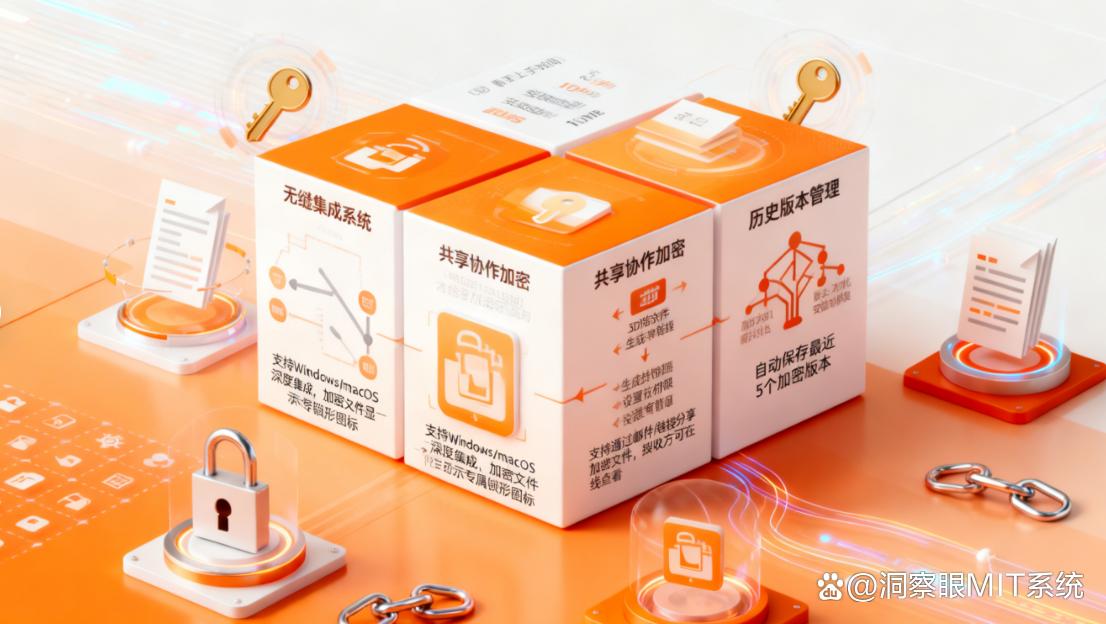
Its use is very intuitive. After installing the software, right-click the file to be encrypted, select the "Encrypt" option in the "AxCrypt" menu, then enter the password and confirm, and the file will be encrypted quickly.
The encrypted file icon will change and the content cannot be opened directly. When you need to use the file, right-click again, select "Decrypt" and enter the correct password to access the file normally.
And it also supports batch encryption and decryption operations, which can greatly improve work efficiency.
Method 5: Encrypt the office software itself to protect work results
The commonly used office software such as Word, Excel, and PPT actually have built-in encryption functions, which can effectively protect our work results from being viewed and modified at will by others.
Taking Word as an example, open the document you want to encrypt, click the "File" tab, select "Information", then click "Protect Document", and select "Encrypt with Password" in the pop-up menu. After entering the password and confirming it, you will need to enter the password to view and edit the document next time. The operations of Excel and PPT are similar. In this way, important work data can be ensured from being easily obtained and tampered with by others.
Okay, the above are five super easy to use computer encryption methods. We can choose the appropriate method according to our own needs and add a layer of solid security protection to our computers so that our data is safe and worry-free! Hurry up and give it a try!


 Insight Eye MIT System


 Hebei Public Network Security No. 13019902001038